DVC GATE MODULE QUICK START

QUICK  START

GATE OPENING MODULES

DVC – GATE 2G/2G GPS /LTE

DVC – GATE LTE ISO

DVC – GATE WiFi ISO

  • PURPOSE AND SCOPE OF APPLICATION
    The DVC GATE series modules (2G, 2G-GPS, LTE, LTE ISO, Wi-Fi ISO) are specialized barrier and gate opening modules and are fully ready for operation as part of the multi-user cloud service: https://gate.dvc-cloud.com/.
    The DVC GATE Wi-Fi ISO model requires configuration of a WiFi network connection; the setup procedure is provided at the end of this manual.

  • GATE CONTROL WIRING DIAGRAMS
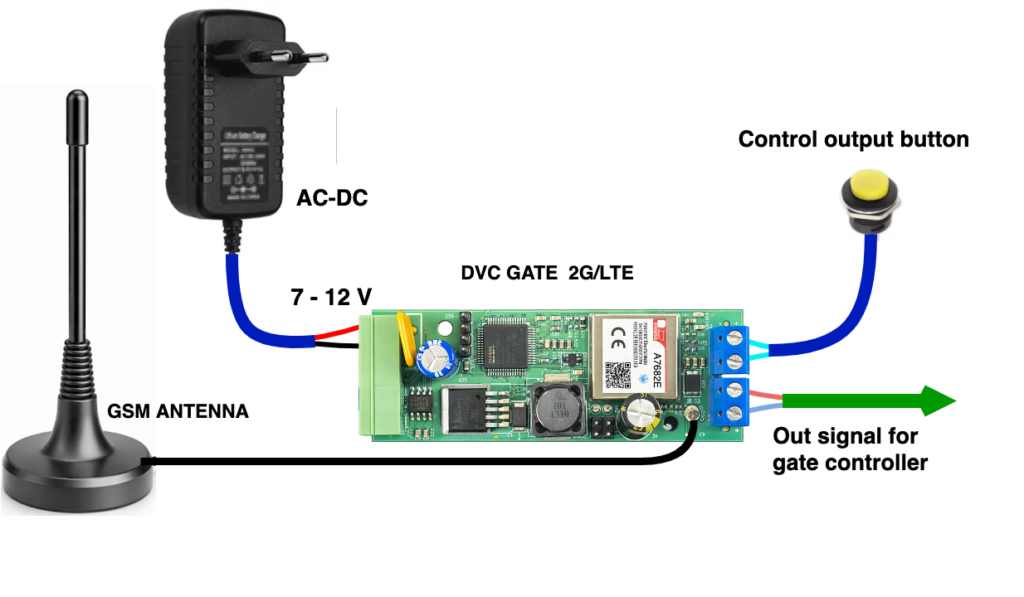
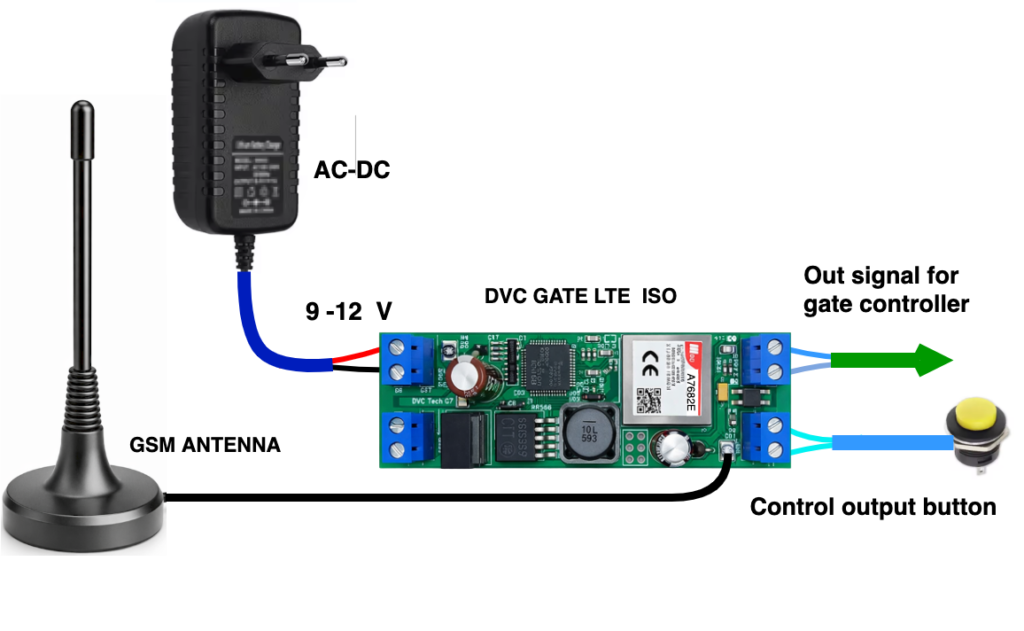
    Wiring diagrams for connecting the DVC GATE 2G / LTE / LTE ISO module to the gate controller — Fig. 1, 2.*

Wiring diagrams for connecting the DVC GATE 2G / LTE / LTE ISO module to the gate controller — Fig. 1, 2.*

3. DEVICE REGISTRATION

3.1.1.
Go to https://gate.dvc-cloud.com/ as the module owner.
Enter your phone number and the Device ID of your module (the sticker is included in the package).
Create a name for the site you will control.

3.1.2.
Add a list of users who are allowed to open the gate at this site.
Enter their phone numbers and email addresses.

3.1.3.
If needed, create a schedule.
You can set times when the gate or barrier is always open, or always closed and cannot be opened.

3.1.4.
You can also create a list of mobile phone numbers.
Calls from these numbers will activate the output contacts of the DVC GATE module.
Then upload this list to the module memory.


4. CONNECTION

4.1.
Connect the DVC GATE LTE or Wi-Fi module according to the wiring diagram in this manual.

4.2.
Connect the module output contacts to the control input of the gate or barrier controller (button type / dry contact type).

When using DVC 2G / LTE GATE, the open collector output can be connected directly to the gate controller input that is controlled by “0”, or you can use an external relay.

4.3.
Insert the SIM card into the SIM holder on the back side of the module board and apply power:

  • 7–12 V for DVC GATE LTE / 2G / 2G-GPS / LTE ISO

  • 6–9 V for DVC GATE Wi-Fi ISO

4.4.
After 30 seconds, the module will connect to the service and will be ready to work.

4.5.
You can test gate control by pressing the “Test” button on your account page.


5. SETTING UP DVC GATE WIFI ISO CONNECTION TO WI-FI

5.1.
Download the DVC P)OM terminal program from:
https://division.business/download-dvc-configurator/

Install and run it on Windows OS.

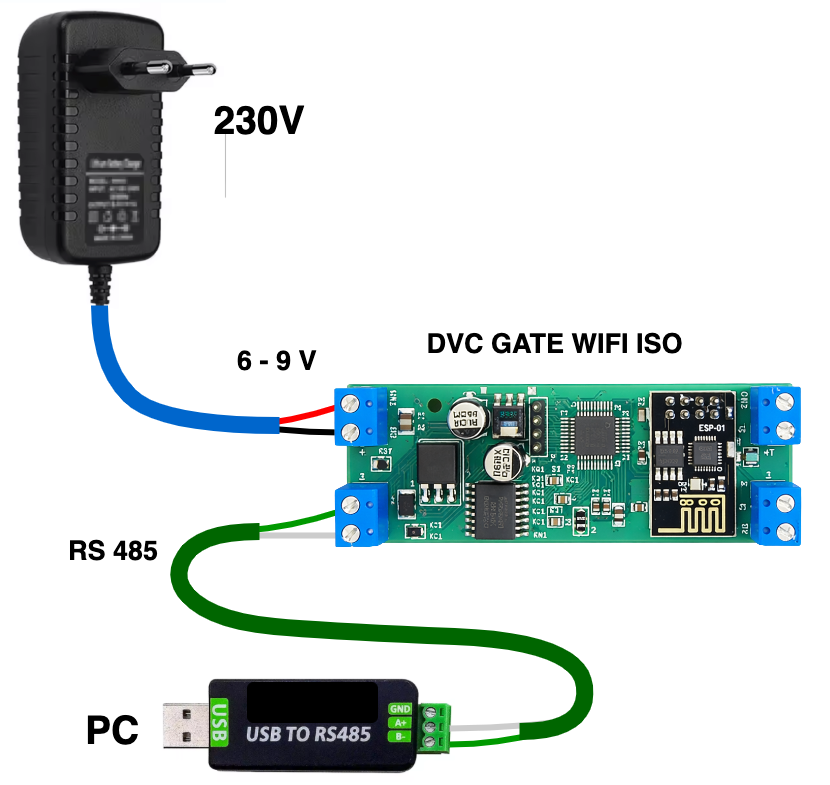
The wiring diagram for DVC GATE Wi-Fi ISO setup to connect to the Wi-Fi network is shown in Fig. 4.

Connect terminals A and B of a standard USB–RS485 interface converter to terminals A and B of the DVC GATE WIFI ISO module.
Connect the USB plug to the computer as shown in Fig. 4.

Supply 6–9 V power to the DVC GATE WIFI ISO.

5.2. Start the terminal:
Open the DVC Configurator program and set the Serial parameters .

5.3. Set the COM port parameters:

  • Speed: 9600

  • Data bits: 8

  • Parity: None

  • Stop bits: 1
    Then click the Open button to start working with the module.

Figure 4 shows the wiring diagram of the DVC GATE WIFI ISO modem for Wi-Fi setup.

5.4. Make sure the access point (router) is turned on. Prepare the SSID (network name) and password.

5.5. Send the Wi-Fi setup command from the Hercules program to the module:

5.6.
:CMD{SSID_PASSWORD:"YOUR_WIFI_NAME","YOUR_WIFI_PASSWORD";}CRC:1234

5.7. After this, the module connects to the Wi-Fi network and, in a few seconds, to the server: https://gate.dvc-cloud.com/

If needed, you can send us the Wi-Fi network name and password where your gate control module will work. Our specialists will set up the Wi-Fi module for your network and send it to you.
info@division.business


6. OPERATION

Download the DVC GATE mobile app. During registration, enter your phone number and email.

Now you can control the gate from the app or by calling the phone number of the SIM card installed in the gate control module.